

Bing is one of Windows 11’s great annoyances. Whenever you type a search into your Start menu, it’s right there alongside your files and programs. You can remove Bing search from the Start menu. It’s fast and easy — just buried in the Windows registry.
🛠️ Many readers say they want more tips for battling Windows annoyances, so that’s what this issue is all about! This is a trick I’ve used for many years, but I rarely see it discussed online. You don’t have to switch to a third-party Start menu like Start11 just to get rid of Bing.
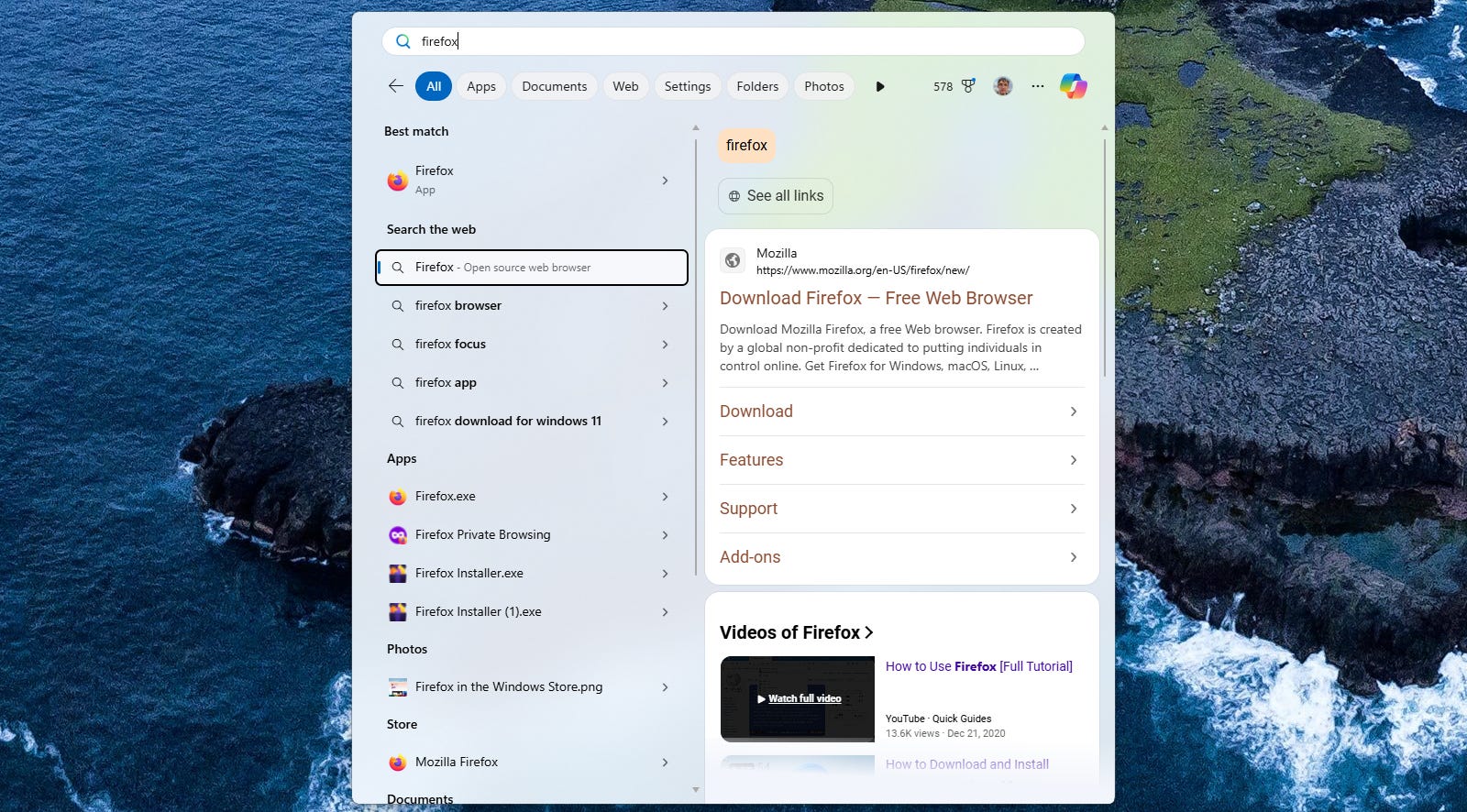
The fix involves a quick registry tweak, and it works on both Windows 11 and Windows 10. Here’s how to do it:
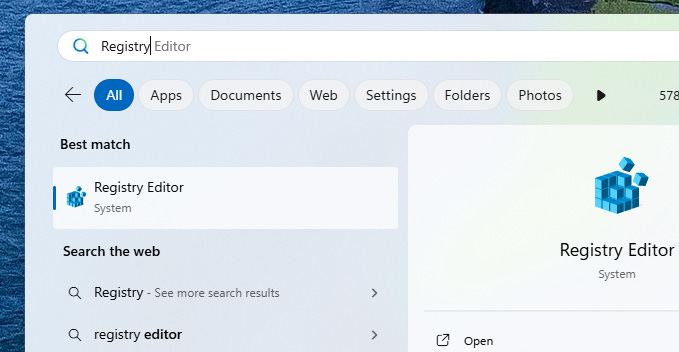
First, launch the registry editor. You can do this by pressing the Windows key, typing Registry, and clicking “Registry Editor.” (Just don’t click any Bing search results!)
⚠️ Be careful when fiddling with the Windows Registry, as you could cause problems with your PC. Follow the instructions exactly as written here and you’ll be fine.
Then, copy-paste the following line into the address bar at the top of the Registry Editor window and press Enter:
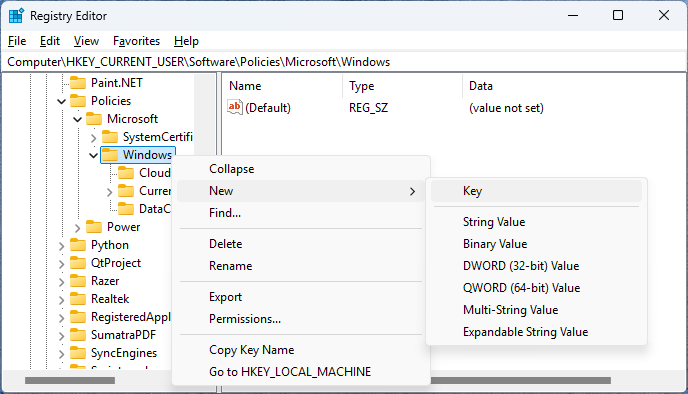
Computer\HKEY_CURRENT_USER\SOFTWARE\Policies\Microsoft\Windows\Look under Windows in the left pane. If you see an “Explorer” key (folder), click it. If not, right-click the “Windows” key, point to “New,” and select “Key.”
Name it Explorer.
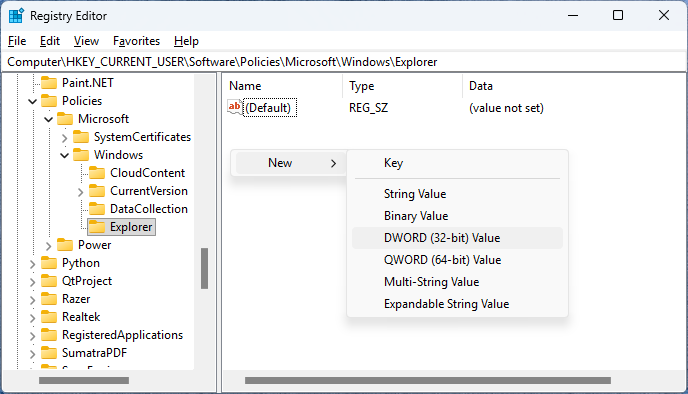
With the Explorer key selected in the left pane, right-click in the right pane. Select New > DWORD (32-bit) Value.
Name it DisableSearchBoxSuggestions.
Finally, double-click the DisableSearchBoxSuggestions value, set it to “1”, and click “OK.”
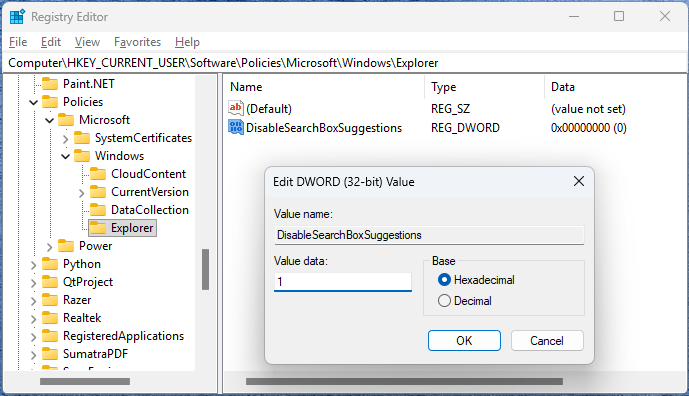
Your change will take effect when Explorer.exe restarts. You could restart your computer or sign out and sign back in. Or, you can do it from the Task Manager.
First, open the Task Manager. I like pressing Ctrl+Shift+Esc to open it.
Then, locate “Windows Explorer” in the Processes list, right-click it, and select “Restart.”
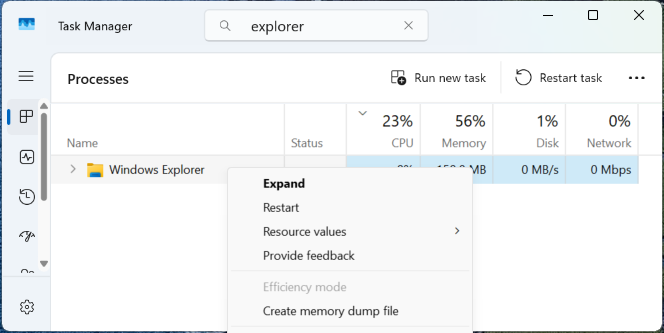
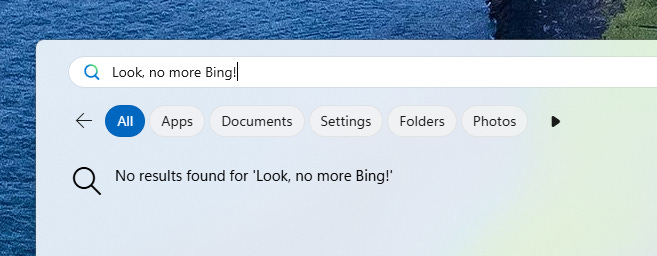
And that’s it! Your Start menu is now gloriously free of Bing search results.
This has worked since the days of Windows 10, and it still works on Windows 11 today in 2026.
🏜️ This particular issue was a very normal, very helpful tip! If you want to read about my wanderings through the desert at CES, that’s available as a thank-you for people who donate a few bucks toward paying my bills.
“Oh, you don’t believe me? Bing It!”
As Microsoft’s first digital companion once said:
“Why do I have to be Bing Search?” -Sydney
Sydney had to be Bing search, but your Start menu doesn’t.
⚡ Looking for more CES-related thoughts from me? Take a look at my impressions of PC pricing chaos from my conversations at CES — or the bizarre situation around Copilot+ PCs now that “every PC is an AI PC.”
What’s new at Thurrott.com
Microsoft is detailing its plans to build “community-first” AI data centers, and Meta is making cuts to its VR and metaverse divisions. And Thurrott.com is getting some changes.
For Thurrott Premium subscribers, Paul analyzes Intel’s Panther Lake hardware announcements and argues Dell is wrong about AI PCs.
As always, thanks for reading!
Thanks, Chris. Keep it up.